
To upload and add a link to a document (i.e. – PDF, Word, Excel, PowerPoint, etc.):
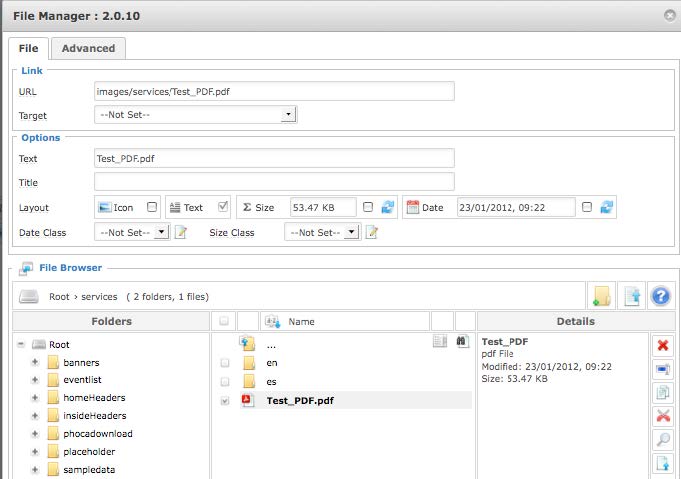
- Select the text that will link to the document.
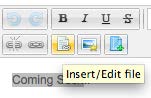
- Click the “Insert/Edit File” icon.
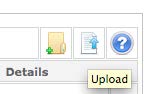
- Choose the “Upload” button on the middle-right area of the window that pops up.
- Either drag-and-drop the files you would like to upload into the resulting window that pops up, or click “Browse” and choose your file.
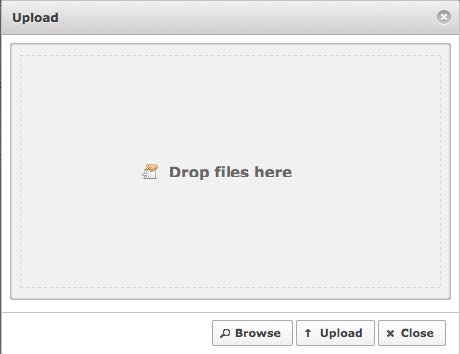
- Hit “Upload” and then close that window once the Upload is complete.
- The file you just uploaded should appear in the directories at the bottom of the Insert File window, once you have the file selected you want to link, hit Insert.
- The file link will display in the editor as a text hyperlink, but will not be clickable in the editor so it doesn’t send you away from your unsaved changes.
- To remove links to documents later, select the hyperlink in the editor and use the “Unlink” tool.