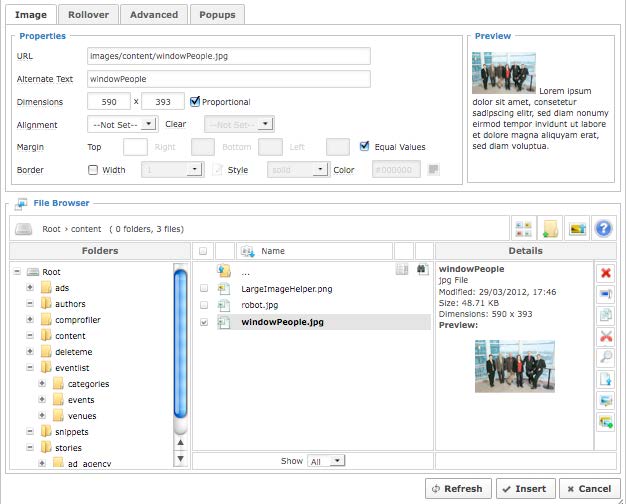
To insert an image into a page:
- Select the area where you would like to insert the image.
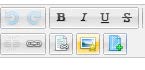
- Click the Insert Picture icon from the editor tools list.
- If the image is already uploaded, locate it on the next window that pops up.
- If you still need to upload the image, click the “Upload” button and choose your file, using “Browse” or the drag-and-drop (also outlined on page 2.5). Close the window upon completion of upload.

- Select the image in the File Browser portion of the window and hit “Insert”.