
To link to a page within your website, select the text you would like to link and hit the “Insert/Edit Link” button from the editor tools.
- Select the “Link” tab and search for/select the page on your site you want to link to under “Content”.

- Select “Target” in this tab to define where you’d like the page to open up (For internal pages, Revel recommends Current Window)
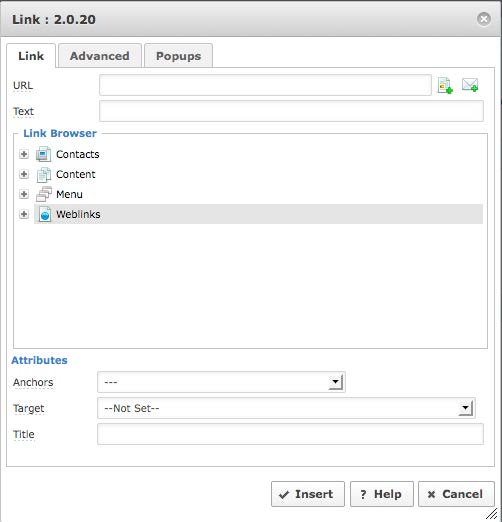
- Click “OK”.
To add a link to another site, select the text you would like to link and hit the “Insert/Edit Link” button from your editor tools.
- Paste in your URL to the URL field.
- Inputting an email address can be accomplished by hitting the “Email” button found to the right of the URL field.
- Select “Target” to define where you’d like the page to open up (For external pages, Revel recommends New Window)
- Click “OK”.
 To cleanly and efficiently remove links, select the hyperlink in the editor and click the “Unlink” tool.